Organize your email workflow on a custom domain
Route custom-domain aliases into Gmail, sort them into labels, and keep new senders out of spam.
Running email on your own domain looks simple: point hey@yourdomain at your
personal Gmail and forward. Do it naively and two things bite you. Everything
lands in one undifferentiated inbox, and mail from new senders gets flagged as
spam. This is the workflow I use to fix both: route the aliases through
Cloudflare, sort them into labels in Gmail, and keep the whole thing out of the
spam folder.
narayann.dev (hey@ for social, work@ for work, both forwarding to a
personal Gmail) is the running example.
The workflow
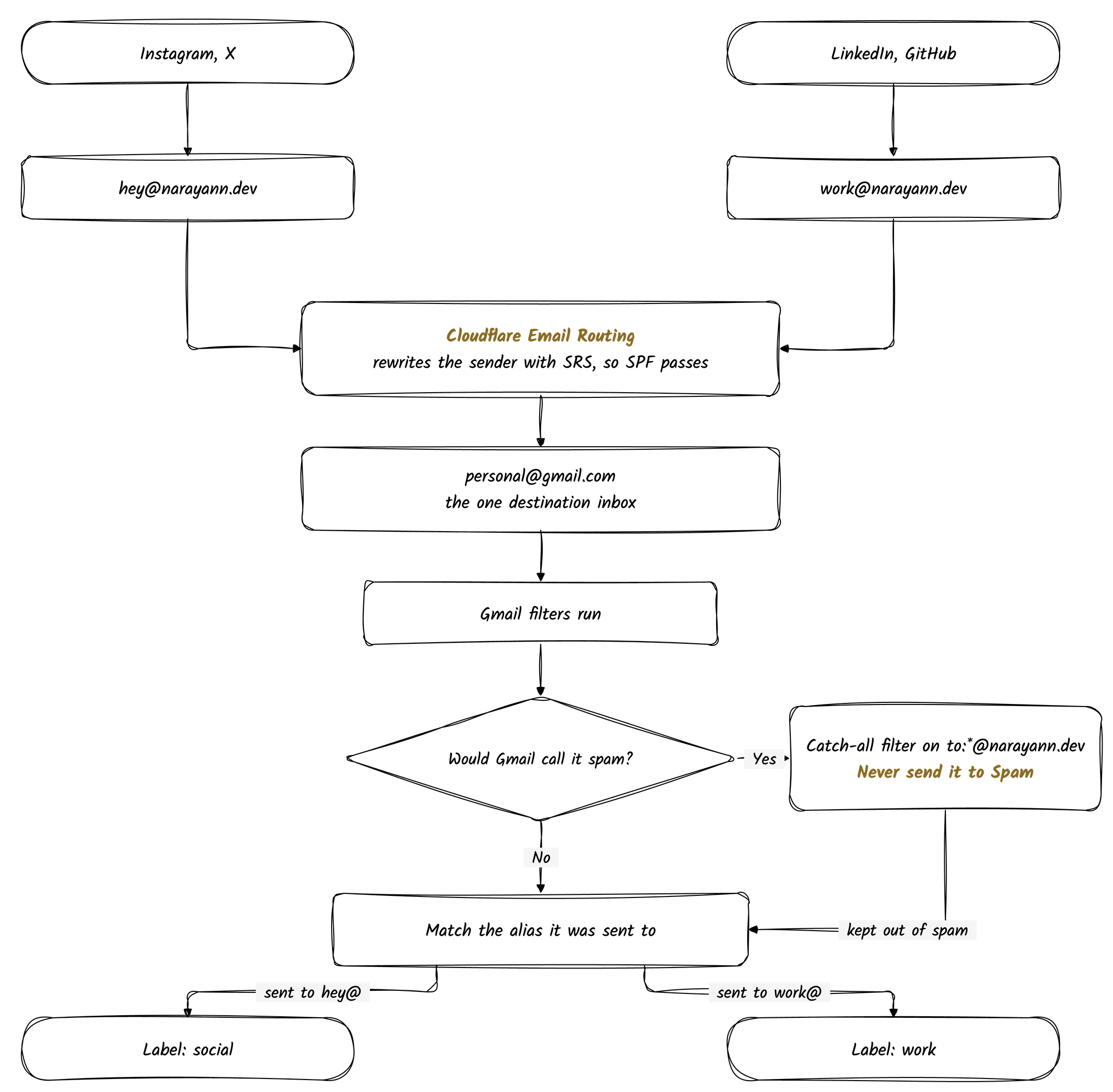
Route the domain through Cloudflare
Cloudflare Email Routing forwards your aliases to Gmail and rewrites the envelope sender with SRS, so SPF passes on the forwarding hop and mail is not penalized for being forwarded. The domain stays registered wherever it is (Squarespace, in my case); only DNS moves to Cloudflare.
- Sign up at cloudflare.com.
- Add the site
narayann.dev. - Cloudflare auto-imports existing DNS. Verify every record copied over.
- Copy Cloudflare's two nameservers (for example
xxx.ns.cloudflare.com). - In the Squarespace domain panel, set Nameservers to custom and paste the Cloudflare ones.
- Wait for activation (minutes to hours).
- Cloudflare dashboard → Email → Email Routing → Get Started.
- Add your personal Gmail as the destination and click the verify link it sends you.
- Create the custom addresses, each routing to your Gmail:
hey@narayann.dev → personal Gmail work@narayann.dev → personal Gmail - Accept the MX, SPF, and TXT records Cloudflare adds automatically.
- In Squarespace, disable the old email forwarding presets.
- Remove any leftover MX records still pointing at Squarespace.
To verify: send a test from a fresh account and confirm it arrives. Open the Gmail message header and check that SPF and DMARC show PASS. Forwarded DKIM may show neutral, which is expected and fine once SPF aligns.
Sort incoming mail into labels
Everything now lands in one Gmail inbox. A filter per alias sorts it by which address the message was sent to. In Gmail → Settings → Filters and Blocked Addresses → Create a new filter:
Social mail:
To: hey@narayann.devCreate the filter, then tick Apply the label and pick or create social.
Add Also apply filter to matching conversations so existing threads get
labeled too.
Work mail:
To: work@narayann.devSame idea, label work.
If you want an alias out of the main inbox entirely, also tick Skip the Inbox (Archive it) so it lives only under its label.
Keep new senders out of spam
Even with SPF passing, a brand-new sender has no personal trust signal with Gmail, so a borderline message can still get flagged. Existing threads are safe because Gmail already trusts the conversation. One catch-all filter fixes new senders:
To: *@narayann.devCreate the filter and tick Never send it to Spam (add Always mark as important if you want). This works instantly and needs no DNS changes. You can fold it into the per-alias filters above instead of running it separately.
Harden with DMARC
A DMARC record helps your domain's reputation and gives you deliverability reports. Add a TXT record:
| Type | Name | Value |
|---|---|---|
| TXT | _dmarc.narayann.dev | v=DMARC1; p=none; rua=mailto:your-personal@gmail.com |
p=none means monitor only, no enforcement, which is the safe way to start.
Useful Gmail filter variants
Multiple aliases in one filter:
to:(hey@narayann.dev OR work@narayann.dev)All aliases on the domain:
to:(*@narayann.dev)From a specific sender, to auto-label newsletters or a noisy service:
from:(newsletter@substack.com)What I'd do
Route the domain through Cloudflare first, since that is the backbone. Add the per-alias label filters so mail sorts itself, and the catch-all never-spam filter so nothing new gets lost. Then add the DMARC record while you are already in DNS. Once Cloudflare is live, drop the old Squarespace forwarding entirely.